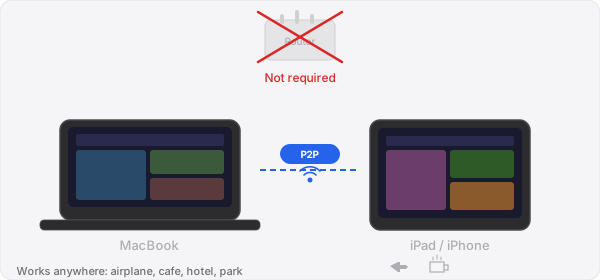
Most wireless display solutions assume you have a working Wi-Fi network. That assumption falls apart more often than you would expect. Coffee shops with captive portals that disconnect devices from each other. Hotel Wi-Fi that blocks peer traffic. Conference venues where the network is overloaded. Airplanes with no Wi-Fi at all. Client offices where you cannot connect personal devices to the corporate network.
If you rely on a second display for your workflow, these situations can be frustrating. The good news is that you do not actually need a Wi-Fi router to wirelessly extend your MacBook display. Peer-to-peer wireless technology lets two Apple devices connect directly.
What Is Peer-to-Peer (P2P) Wireless?
Peer-to-peer wireless is a direct device-to-device connection that does not route through a Wi-Fi router. Apple devices support this through a combination of Bluetooth (for discovery) and Wi-Fi Direct (for data transfer). When two Apple devices establish a P2P connection, they create their own private wireless link. No router, no internet connection, no network infrastructure of any kind is required.
You may already use P2P technology without realizing it. AirDrop uses peer-to-peer connections to transfer files between Apple devices. When you AirDrop a photo to someone on the subway, there is no Wi-Fi network involved. The same underlying technology can be used for display streaming.
How P2P Display Extension Works
The process is straightforward. Your MacBook creates a virtual display output (via a software display driver). The video from that virtual display is encoded and sent directly to your iPad or iPhone over the peer-to-peer connection. Your iOS device decodes the video and shows it on screen in real time, functioning as a true extended display.
From macOS's perspective, it behaves exactly like a physical external monitor. You can drag windows to it, arrange its position in System Settings, set its resolution, and use it for any application. The only difference is the transport mechanism: wireless P2P instead of a cable.
Setting Up a P2P Extended Display
Gyeot is a Mac app that supports peer-to-peer display extension natively. Here is the setup process:
Prerequisites
- A Mac running macOS 13.2 (Ventura) or later
- An iPhone or iPad with the Gyeot app from the App Store
- Bluetooth and Wi-Fi enabled on both devices (Wi-Fi does not need to be connected to a network; it just needs to be turned on so the radio is available for P2P)
Step-by-Step
- Install Gyeot on your Mac. Download from the Visionary-Labs website. The installer sets up the virtual display driver automatically.
- Install Gyeot on your iPhone or iPad. Available on the App Store.
- Disconnect from Wi-Fi (optional). To verify P2P is working, you can disconnect both devices from any Wi-Fi network. Make sure Wi-Fi and Bluetooth remain enabled (the toggle should be on, just not connected to a network).
- Open Gyeot on both devices. The Mac app will broadcast its availability, and the iOS app will discover it via Bluetooth/Wi-Fi Direct.
- Tap to connect. Select your Mac from the iOS app. The P2P connection is established, and your Mac's virtual display appears on your iPad or iPhone.
The entire process takes under a minute once both apps are installed.
Real-World Scenarios Where P2P Shines
Working from a Coffee Shop
Many coffee shops have Wi-Fi networks that use captive portals (the login pages that appear in your browser). These portals often prevent local device-to-device communication even after you have logged in. With P2P, your Mac and iPad connect directly, and the coffee shop's network is irrelevant.
Traveling
On a plane or train with no Wi-Fi service, a P2P connection works perfectly. Your MacBook and iPad create their own private link. You get your dual-screen workspace at 35,000 feet without paying for in-flight Wi-Fi.
Client Sites and Corporate Offices
When visiting a client's office, you often cannot connect personal devices to their corporate network, and even if you could, the network may block local traffic between devices. P2P bypasses this entirely because it does not touch the office network at all.
Outdoor Locations
Working from a park, a patio, or any outdoor space where there is no Wi-Fi? P2P does not care. As long as your Mac and iOS device are within wireless range of each other (typically 30-50 feet), the connection works.
Hotels and Conferences
Hotel Wi-Fi is notoriously unreliable and often isolates devices from each other for security. Conference venue networks are usually overloaded with hundreds of devices. P2P gives you a private, dedicated wireless channel that is not affected by how many other devices are on the venue's network.
Performance Considerations
P2P connections use the same Wi-Fi radio hardware as a normal router connection, so the raw bandwidth and latency are comparable. In practice, P2P can actually deliver more consistent performance than router-based connections because:
- There is no router acting as a middleman (one fewer hop in the connection)
- No other devices are sharing your wireless channel
- No congestion from other users streaming video or downloading files
- No interference from captive portals, firewalls, or traffic shaping
For productivity tasks like text editing, web browsing, email, chat windows, and reference material, P2P performance is excellent. Video playback and fast-scrolling content are usable, though they may show minor compression artifacts at high scroll speeds, which is true of any wireless display solution.
Does P2P Drain Battery Faster?
The direct wireless connection does consume power, similar to any Wi-Fi activity. On the Mac side, the impact is minimal since MacBooks have large batteries and are often plugged in. On the iOS device, expect battery consumption comparable to streaming video. For extended work sessions, keep your iPhone or iPad charging while using it as a display.
Comparing P2P to Other Wireless Display Methods
| Method | Router Required | Works Offline | Extra Hardware |
|---|---|---|---|
| Sidecar (Wi-Fi mode) | Yes | No | None |
| Sidecar (USB mode) | No | Yes | USB cable |
| Duet Display (wireless) | Yes | No | None |
| Luna Display | Yes | No | Dongle ($129.99) |
| Gyeot (P2P mode) | No | Yes | None |
The Bottom Line
If your workflow depends on a second screen, you should not have to give it up just because you are away from a Wi-Fi router. Peer-to-peer display extension lets you carry your dual-screen setup everywhere your MacBook and iPhone or iPad go. No router, no dongle, no cable. Just two devices and a $4.99 app.
The next time you find yourself at a coffee shop with broken Wi-Fi, on a plane with no internet, or in a conference room where you cannot connect to the network, your second screen still works. That is the practical value of P2P.