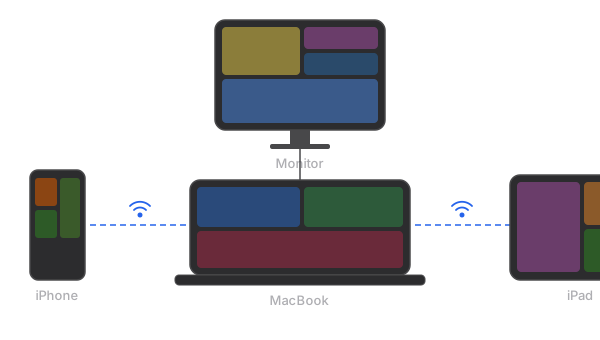
A second monitor dramatically improves productivity. Research consistently shows that dual-display setups reduce task-switching time and increase output by 20-30%. But external monitors are expensive, bulky, and not exactly portable. If you already own an iPad, you have a high-resolution display sitting in your drawer that could serve as a perfectly capable second screen for your Mac.
This guide covers every reliable method to turn your iPad into an extended Mac display, including the trade-offs you should know before choosing one.
Method 1: Apple Sidecar (Built-in)
Sidecar is Apple's native solution, introduced in macOS Catalina. It lets you use a compatible iPad as a second display over Wi-Fi or USB. Since it is built into the operating system, there is nothing to install on the Mac side.
Requirements
- Mac from 2016 or later (some 2015 models supported)
- iPad with Apple Pencil support (iPad Pro, iPad Air 3rd gen+, iPad 6th gen+, iPad mini 5th gen+)
- Both devices signed into the same Apple ID with two-factor authentication
- macOS Catalina or later, iPadOS 13 or later
Pros
- Free, no additional software required
- Low latency over USB connection
- Apple Pencil support for drawing and markup
Cons
- Strict hardware requirements exclude many older devices
- Wi-Fi mode can be laggy on congested networks
- Does not work with iPhones at all
- Both devices must use the same Apple ID
Method 2: Duet Display
Duet Display was one of the first apps to offer iPad-as-monitor functionality, originally designed for wired USB connections. It has since added wireless support, though the wireless feature requires a paid subscription.
Pros
- Works with older iPads that Sidecar does not support
- Cross-platform: also works with Windows PCs
- Apple Pencil and touch input support
Cons
- Wireless mode requires an annual subscription ($29.99/year)
- Wired mode only works via USB, limiting flexibility
- Companion app must run on both Mac and iPad
- Some users report performance inconsistencies after updates
Method 3: Luna Display
Luna Display takes a hardware-based approach. You plug a small dongle (USB-C or Mini DisplayPort) into your Mac, and it creates a dedicated connection to your iPad. The hardware ensures a reliable, low-latency signal.
Pros
- Hardware dongle provides consistently good performance
- Works with older Macs and iPads
- No subscription fees after the initial purchase
Cons
- Requires purchasing a physical dongle ($129.99)
- Another piece of hardware to carry and potentially lose
- Occupies a USB-C or DisplayPort slot on your Mac
Method 4: Gyeot
Gyeot is a newer entry that takes a software-only approach with a focus on simplicity and flexibility. It installs a virtual display driver on your Mac and streams the output to your iPad (or iPhone) over the network. What sets it apart is its peer-to-peer mode: your Mac and iOS device connect directly without needing a Wi-Fi router at all.
Pros
- Works with iPhones in addition to iPads
- Peer-to-peer mode works without any Wi-Fi router, ideal for travel
- Supports older devices that Sidecar excludes
- One-time purchase ($4.99) with no subscription
- Simple setup: install on Mac, download the iOS app, connect
Cons
- macOS 13.2 (Ventura) or later required
- No Apple Pencil pressure-sensitivity support (touch input works)
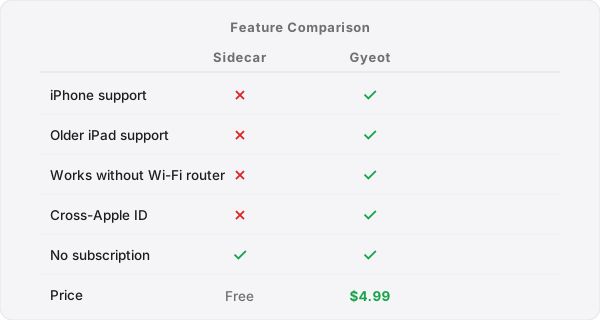
Comparison Table
| Feature | Sidecar | Duet Display | Luna Display | Gyeot |
|---|---|---|---|---|
| Price | Free | $29.99/year | $129.99 dongle | $4.99 one-time |
| iPhone support | No | Limited | No | Yes |
| Older iPad support | No | Yes | Yes | Yes |
| Works without router | No | No | No | Yes (P2P) |
| Hardware required | None | None | Dongle | None |
| Subscription | None | Required for wireless | None | None |
Which Method Should You Choose?
If your Mac and iPad both meet Sidecar's requirements and you only work in places with a stable Wi-Fi connection, Sidecar is a perfectly fine free option. However, if you have an older iPad, want to use your iPhone as a display, or need to work in places without a Wi-Fi router (cafes with captive portals, airplanes, hotel rooms), Gyeot is the most practical and affordable choice. It costs less than a single month of most subscriptions and works in situations where other solutions cannot.