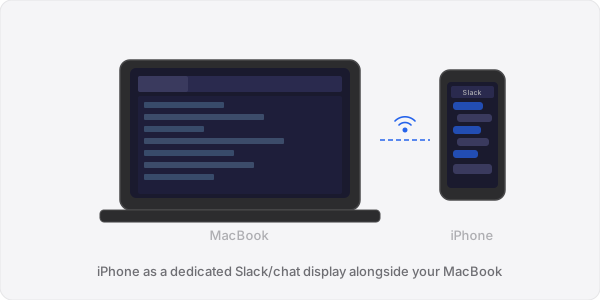
When people think about adding a second display to their Mac, they usually picture an iPad propped up next to their laptop. That makes sense given the screen size. But what about iPhones? You almost certainly have one within arm's reach right now, and its screen is more capable than you might think as an auxiliary display.
An iPhone screen is not going to replace a 27-inch monitor for spreadsheet work. But as a dedicated space for a specific task, such as messaging apps, music controls, system monitoring, a video call window, reference material, or a terminal session, it is genuinely useful. And since you already carry it everywhere, it is the one "extra monitor" you will always have with you.
Why Most Solutions Skip iPhone Support
Apple's Sidecar does not support iPhones at all. It was designed exclusively for iPads, and Apple has not expanded it. Most third-party solutions have followed Apple's lead and focused primarily on iPad-sized screens, either ignoring iPhone entirely or treating it as an afterthought.
The technical challenge is real: an iPhone screen is smaller, has different aspect ratios across models, and the interface needs to work well at that scale. But the practical value is also real. Not everyone owns an iPad, and sometimes the best tool is the one you already have in your pocket.
How to Set Up Your iPhone as a Mac Display
Gyeot is currently one of the few solutions that treats iPhone as a first-class target device for display extension. Here is how to set it up:
Step 1: Install the Mac Companion App
Download Gyeot for Mac from the Visionary-Labs website. The Mac app installs a virtual display driver that creates an additional screen output on your Mac. This virtual display appears in System Settings just like a physical monitor.
Step 2: Install the iOS App
Download Gyeot from the App Store on your iPhone. The app is universal, so the same download works on both iPhone and iPad.
Step 3: Connect
Open both apps. If your Mac and iPhone are on the same Wi-Fi network, the Mac will appear in the iPhone app automatically. Tap to connect, and your iPhone becomes an extended display within seconds.
If you do not have a Wi-Fi network available (or the network is unreliable), use peer-to-peer mode. In P2P mode, your Mac and iPhone establish a direct wireless connection between each other, bypassing the router entirely. This works anywhere: airplanes, trains, hotel rooms, parks.
Practical Use Cases for an iPhone Display
Messaging and Communication
Keep Slack, Messages, or WhatsApp on your iPhone display. Notifications and conversations are visible at a glance without cluttering your main workspace. This is arguably the single best use case for a small secondary display.
Music and Media Controls
Move Spotify, Apple Music, or your podcast app to the iPhone screen. Control playback without switching away from your work.
System Monitoring
Run Activity Monitor, iStat Menus, or a terminal with htop on the iPhone display. Keep an eye on CPU, memory, and network usage while you work.
Reference Material
Keep documentation, a design spec, or a reference image visible on the iPhone while you code or design on your main screen. No more toggling between windows.
Video Calls
During video meetings, move the call window to your iPhone display. Your main screen stays free for notes, screen sharing preparation, or the actual work being discussed.
Timer and Task Tracking
If you use a Pomodoro timer, time-tracking app, or a to-do list, having it always visible on a dedicated small screen helps you stay on track without it competing for space on your main display.
What About Screen Size?
Modern iPhones have surprisingly capable displays for this purpose. An iPhone 15 Pro Max has a 6.7-inch OLED display at 2796 x 1290 pixels. That is more pixels than many laptops had just a few years ago. macOS lets you choose the virtual display resolution, so you can scale things to be comfortably readable at iPhone viewing distances.
The key insight is that you are not trying to replicate a full desktop experience on the iPhone. You are creating a dedicated space for one or two specific windows. At that scale, even a 6.1-inch iPhone screen works well.
Advantages Over Other Approaches
| Approach | iPhone Support | Extra Hardware | Cost |
|---|---|---|---|
| Apple Sidecar | No | None | Free |
| Duet Display | Limited | None | $29.99/yr |
| Luna Display | No | Dongle ($129.99) | $129.99 |
| Gyeot | Full support | None | $4.99 one-time |
Tips for the Best Experience
- Use a stand or prop. A phone stand or even a stack of books angled toward you makes a significant difference in ergonomics compared to laying the phone flat on the desk.
- Keep it charged. Streaming a display uses battery. If you plan an extended session, keep your iPhone plugged in or on a wireless charger.
- Arrange displays in System Settings. Open System Settings, then go to Displays, and drag the iPhone display to match its physical position relative to your Mac. This makes mouse movement between screens feel natural.
- Try peer-to-peer mode. Even if you have Wi-Fi, P2P mode can sometimes deliver more consistent performance because it eliminates router congestion as a variable.
The Monitor You Already Carry
Your iPhone is a high-resolution, high-brightness OLED display that fits in your pocket. With the right software, it becomes a genuinely useful second screen for your Mac. It will not replace a large external monitor for heavy multi-window work, but for dedicated single-task display space, it is a practical solution that costs nothing beyond the $4.99 app because you already own the hardware.