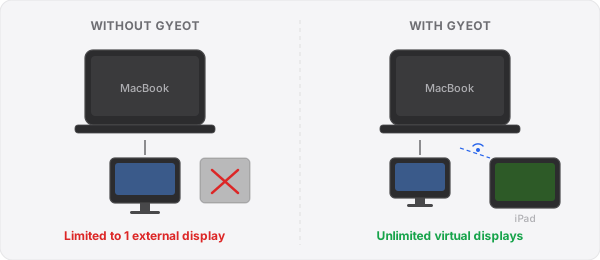
When Apple transitioned to its own silicon, the M1 and M2 chips delivered remarkable performance and battery life improvements. But they also introduced a frustrating limitation: the MacBook Air and 13-inch MacBook Pro with M1 or M2 chips officially support only one external display. For anyone who relies on a multi-monitor setup, this was a significant downgrade from the Intel era.
This limitation is not a bug. It is a deliberate architectural constraint in the base M1 and M2 chips. The M1 Pro, M1 Max, M2 Pro, and M2 Max do support multiple external displays natively, but those chips are only available in the more expensive MacBook Pro 14-inch and 16-inch models.
Understanding the Limitation
The base M1 and M2 chips have a single external display output pipeline. This means macOS will only recognize one external monitor connected via Thunderbolt, USB-C, or HDMI. If you plug in a second monitor through a dock or hub, the system simply mirrors the first external display instead of extending your desktop.
Which Macs Are Affected?
| Mac Model | Chip | Max External Displays |
|---|---|---|
| MacBook Air (M1) | M1 | 1 |
| MacBook Pro 13" (M1) | M1 | 1 |
| MacBook Air (M2) | M2 | 1 |
| MacBook Pro 13" (M2) | M2 | 1 |
| MacBook Air (M3) | M3 | 2 (with lid closed) |
| MacBook Pro 14" (M1 Pro/Max) | M1 Pro/Max | 2-3 |
| MacBook Pro 14"/16" (M2 Pro/Max) | M2 Pro/Max | 2-3 |
Workaround 1: DisplayLink Adapters
DisplayLink is a technology that uses software-based video output to bypass the native display pipeline. You connect a DisplayLink-compatible dock or adapter (from brands like Plugable, CalDigit, or Dell), install the DisplayLink Manager software on your Mac, and macOS treats the adapter as an additional display output.
Pros
- Lets you connect 2+ additional external monitors
- Works with standard HDMI and DisplayPort monitors
- Established technology with wide hardware support
Cons
- Requires a DisplayLink-compatible dock or adapter ($50-$300+)
- Uses CPU/GPU resources for video encoding, which can affect performance
- Some apps with hardware-accelerated graphics may not render correctly
- Requires a kernel extension or system extension that can conflict with macOS updates
- Screen recording and DRM-protected content may not work on DisplayLink screens
Workaround 2: Dummy HDMI Dongles
A less elegant but functional approach involves using a "dummy" HDMI dongle (also called a headless display emulator) combined with screen-sharing software. You plug the dongle into your Mac's port, macOS thinks a real monitor is connected, and then you use software to view that virtual screen on another device.
Pros
- Dongles cost only $5-$15
- Creates a real display output that macOS fully recognizes
Cons
- Occupies a physical port on your Mac
- You still need separate software to actually see the display output
- Clunky workflow compared to purpose-built solutions
Workaround 3: Use Your iPad or iPhone as a Display with Gyeot
Rather than trying to force additional physical monitors past the M1/M2 limitation, a different approach is to use devices you already own. Gyeot installs a virtual display driver on your Mac and streams the extra screen to an iPhone or iPad over the network.
This approach sidesteps the M1/M2 external display limit entirely because the virtual display driver is not constrained by the chip's physical display output pipeline. Your Mac treats it as just another screen, and the image is delivered to your iOS device via Wi-Fi or direct peer-to-peer connection.
Why This Works Well for M1/M2 MacBooks
- Does not use your Mac's physical display output, so it does not conflict with an existing external monitor
- You can have one physical external monitor plus your iPad/iPhone as a second extended display
- No additional dongles, docks, or hardware purchases beyond the app itself ($4.99)
- Peer-to-peer mode means it works even without a Wi-Fi router
- Works with any iPhone or iPad, giving you flexibility in screen size
Workaround 4: Sidecar (Limited)
Apple's own Sidecar can also serve as an additional display that bypasses the external monitor limit. However, Sidecar has strict device compatibility requirements, does not support iPhones, and requires both devices to be on the same Apple ID. It also does not work without a Wi-Fi network (unless connected via USB cable).
Recommendation
For most M1 and M2 MacBook users, the most cost-effective setup is to connect one physical external monitor via USB-C or HDMI (using the native display output), and then add a second screen using your iPad or iPhone with Gyeot. This gives you a genuine three-screen setup (MacBook display + external monitor + iPad/iPhone) for under $5, without any dongles, docks, or subscription fees.
If you work in different locations and cannot always rely on having a Wi-Fi router available, Gyeot's peer-to-peer mode ensures your extra screen works anywhere. Plug in your one allowed external monitor, fire up Gyeot on your iPad, and you have a full multi-display workspace.